
How do you use our online notepad?
Below, you can find a video user guide with all the features of our online notepad.
Step-by-step guide to using our online notepad
Our Online notepad it allows you to create notes, save them, share them, make them private, and work with different types of content directly from the browser, without installing any software.
In this article you will find all the information you need to learn how to use all the tool's main features.
1. Enter the online notepad
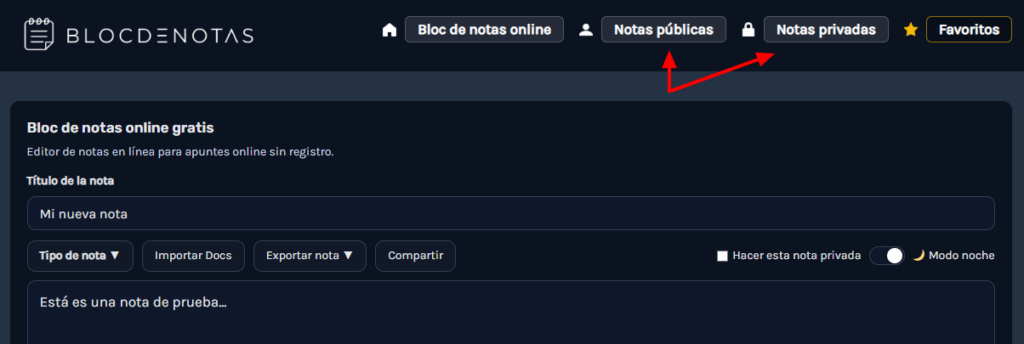
When you access the website, you'll see the main notepad editor, from there you can start creating a new note by typing directly the title and content you want.
At the top you will find the main menu, from which you can access your public notes and your private notes.
2. Write the title of your note and add content
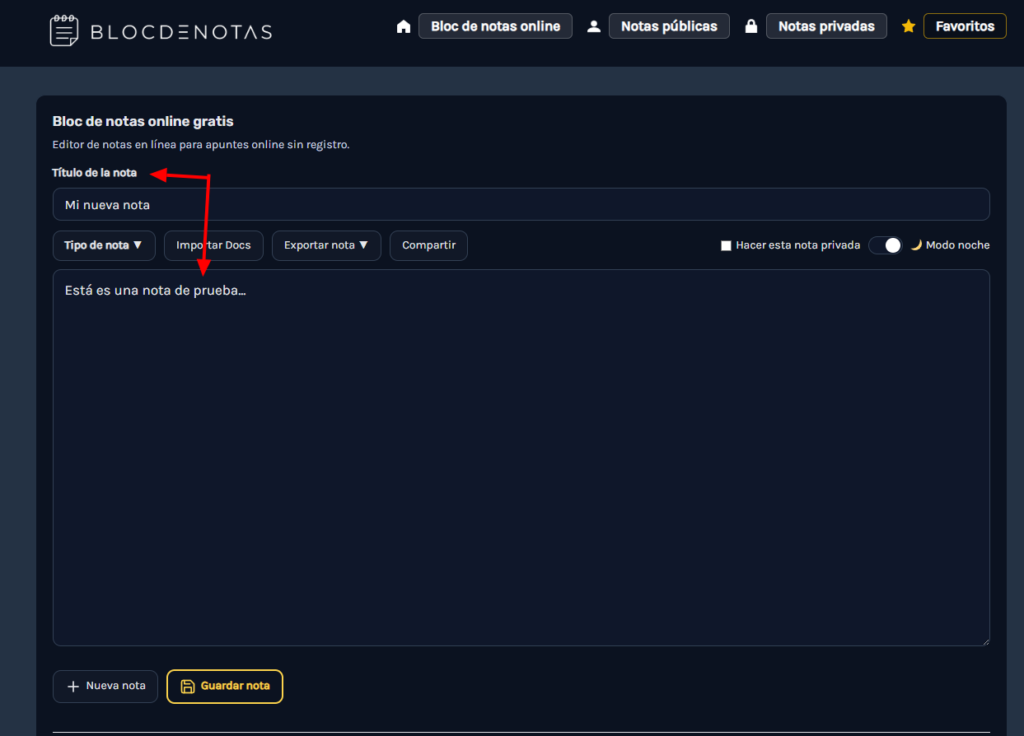
The first thing you should do is write a title in the field (Note title).
This title will help you identify the note later when you save it, search for it, or open it from public or private notes.
Below the title, you will find the main area where you can write the content of your note.
You can use this space to jot down ideas, reminders, long texts, tasks, codes, notes, or any information you want to save.
Lastly, don’t forget to save your note, although you don’t need to worry, since what you write is saved with your cookie, so if you close the page by mistake, the text will still be saved 😊
3. Choose the type of note
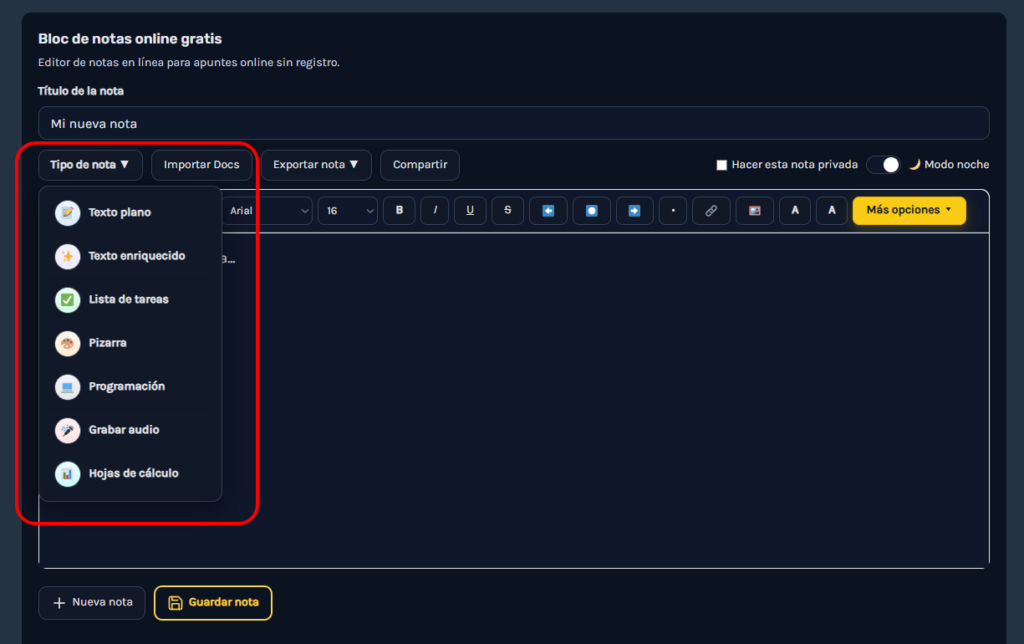
The good thing about our tool is that it offers you different useful tools for jotting down your notes, so if you want to save complex documents, audio notes, to-do lists, or anything else, you’ll be able to do it without any problem.
- Plain text notes: This mode is designed for those who want to save information without advanced formatting, in a clean, fast, and straightforward way.
- Rich text editor: It allows you to format the note content, change fonts, sizes, colors, and add bold text, links, images, and other visual elements.
- To-do list: Used to create tasks with a title and description, mark them as completed, or delete them when you no longer need them.
- Whiteboard: It allows you to draw directly from the browser using pencil, shapes, colors, stroke thickness, fill, and background.
- Programming: It is designed for writing and organizing code in different languages such as PHP, JavaScript, Python, HTML, CSS, JSON, SQL, or Bash.
- Audio notes: Allows you to record voice notes from the browser and save them along with text, a summary, or a transcription.
- Spreadsheets: It allows you to create quick tables for budgets, lists, simple accounts, or small databases.
4. Save your note
When you finish writing, click Save note so that your notes are saved correctly.
That way, you can close the page and come back another day to view your note, edit it, or keep working on it whenever you need to.
When you save it, you can calmly and easily click on + New note to jot down anything else you’re interested in.

5. Share, import, or export your notes whenever you need to
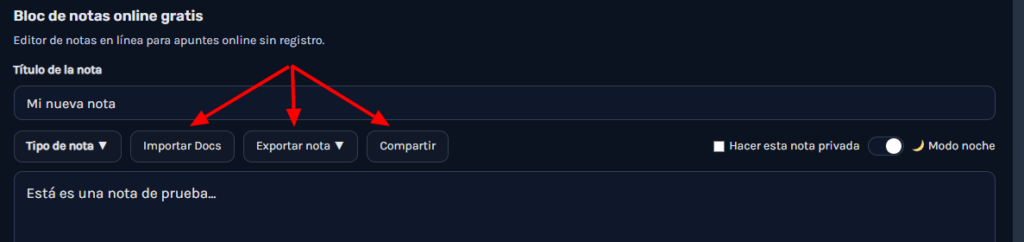
In addition to writing and saving your notes, the notepad also lets you move your information easily. You can share a note with someone else, import documents to work on them, or export your notes to keep a copy on your device.
If you click the Share button, the tool will generate a link that you can copy and send. This is useful when you want to pass a note to someone else without having to copy all the text manually.
You can also use the option Import Docs if you already have content in a file and want to load it into the editor. This way you can continue working on your documents from the online notepad.
Finally, with Export note you can download your notes to keep them off the website, have a backup, or save them on your computer.
6. Manage your public, private, and favorite notes
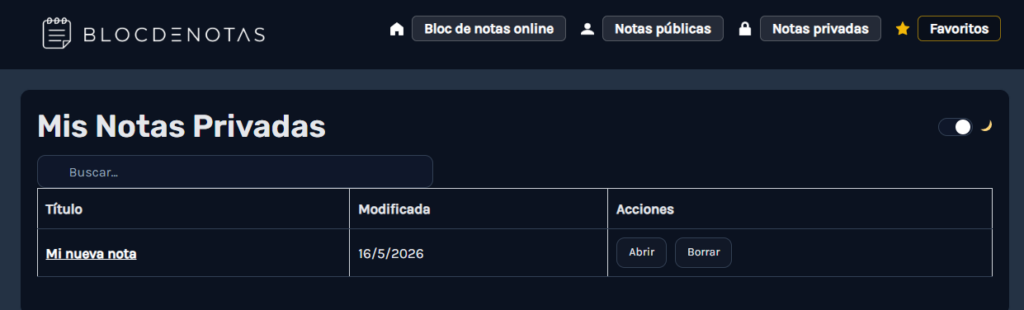
Once you start saving notes, you'll be able to find them easily from the top menu. The website separates your notes into different sections so you can keep everything more organized and quickly access what you need.
In Public notes You’ll be able to view the notes you’ve saved without a password; this section is useful for regular notes, quick ideas, lists, or any content that doesn’t need special protection.
If you prefer to save more personal information, you can use Private notesWhen you mark a note as private, the website will ask you for a master password to protect the content and prevent it from being opened without permission.
7. Customize the notepad to suit your way of working
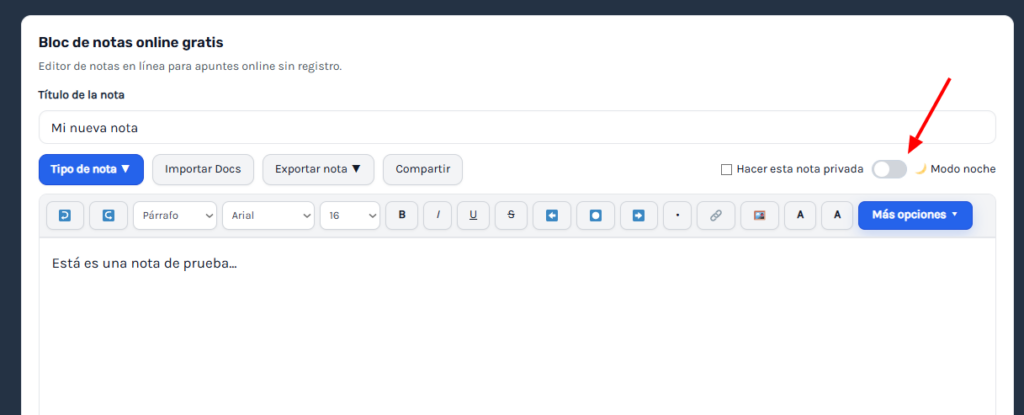
Not everyone writes in the same way, which is why the notepad includes several options to adapt the editor to your preferences and needs. You can work with a simpler layout, change the look of the text, or enable night mode when you prefer a darker screen. Personally, I like dark mode better for eye comfort, but you can customize this to your liking.
The day mode and night mode lets you quickly switch between a light view and a dark view, which is very useful if you're going to be writing for a long time or if you prefer to reduce screen brightness.
You can also customize your notes using different fonts, sizes, and colors. This way, your notes can be easier to read, more visually appealing, and better organized, especially when you are preparing long texts, important ideas, or content you want to review later.
Also, if you are using the rich text editor, you can add elements such as images, links, lists, or text styles so your notes are not just plain text, but more complete documents that are easier to review.
8. Use special tools depending on what you want to jot down
In addition to writing regular notes, you can also use the notepad to work with more specific content. For example, you can create task lists, sketch ideas on a whiteboard, write code, record audio, or prepare small tables when you need to organize data.
If you want to organize pending tasks, the option Task list It lets you add items and mark them when you complete them. This is very useful for shopping, work, routines, workouts, or any list you want to keep handy.
The Blackboard It’s very useful when you need to explain something visually, make a quick outline, or sketch an idea without complicating things. You can also use programming mode Scheduling if what you want to save is code in languages such as HTML, CSS, JavaScript, PHP, Python, SQL, or JSON.
And if you prefer to save information in another way, you can use audio notes to record ideas with your voice or the Spreadsheets to create simple tables, lists, budgets, or data organized by rows and columns.
9. Use your private notes and backups wisely
If you are going to store important information, the best option is to use the private note, so the content stays protected and can only be opened using the master password you have set.
It is important that you keep that password safe, because it will be the one that allows you to access your private notes later. For personal notes, important ideas, work data, or content you do not want to leave visible, this feature is the most recommended.
It is also a good idea use the option to export the note when you have an important note, this way you can save a copy on your computer and avoid losing information if you switch browsers, clear the site data, or need to keep the content outside the website.
10. Choose each function according to the type of note you want to create
The advantage of this online notepad is that it is not just for writing text, you can adapt it according to what you need at any given moment: a quick note, a to-do list, a visual explanation, a table, audio, or even a code snippet.
For quick ideas or reminders, plain text mode Plain text is enough, if you want to prepare more complete and organized content, the rich editor will give you more options to change styles, add links, images, or highlight important parts.
In the end, the idea is that you can use a single tool for different ways of taking notes, without relying on several different programs and without complicating things every time you want to save something.
I hope you like our tool and that you can make very good use of it.
Start taking notes online
You no longer have any reason not to store your notes online completely free